2018/05/16

Will Volvo VOCOM II work with Tech Tool 2.05.xx?

Confirmed! Vocom I can (Vocom 88890300) work with Tech Tool 2.05.xx, while Vocom II (genuine) failed.


Tool: Vocom 88890300 interface and Vocom II
volvo-vocom-i
volvo-vocom-ii
Program: Premium Tech Tool (fresh 2.0.587 install, zero issues)
I installed PTT 2.05.87 . Then updated the APCI and APCI+ from what I could find on this forum in various threads.
ptt-2-5-87
Truck: 2012 USA VN

Error message:
Error
It was not possible to select any operations for the selected product
Detailed information
Code: 0
Description: unit retrieved from Baldo Local is unknown: US…

While I wait for my original Vocom 2 to arrive from Volvo, I borrowed a Vocom 88890300 from a friend. It connects to the truck (2012 USA VN) but when I try to calibrate or program it gives me the error in the first picture. I also took a screenshot of the connection status (see second picture). Is this error caused by PTT (fresh 2.0.587 install, zero issues), the Vocom interface or by the APCI’s I updated from a file someone sent me. Are the European/Asian APCI’s and APCI+’s identical with the USA ones? Any opinions will be greatly appreciated, I have some work to do on the truck and can’t wait until the V2 arrives. Thank you.
volvo-ptt-error-1
Connection:
Communication unit: vocom 88890020/88840133
Mode: usb
Status: active
volvo-ptt-error-2
Tech support from real pros working for obdii365.com:

Vocom II does work with 2.5.xx. you just need to install the drivers. If you want to have Volvo Tech Tool 2.5.xx on Vocom, try this Vocom 88890300 Interface or make sure yours same as the one displayed below
http://www.obdii365.com/wholesale/volvo-88890300-vocom-interface-with-ptt-software-preinstalled.htmlReal professionals have helped test Tech Tool version 2.5 on the Vocom I, working perfect!
volvo-tech-tool-2-5-86-pic-1
volvo-tech-tool-2-5-86-pic-2
volvo-tech-tool-2-5-86-pic-3
volvo-tech-tool-2-5-86-pic-4
Tech Tool 2.5.xx tested good:
2.6.xx already has the drivers for Vocom I and II preinstalled
Firstly APCI can update online via PTT so it should be suitable for US trucks when users all are using it.
Secondly the APCI+ files available here works fine on US Volvo trucks as well as other regions. Some users have tested it.


2018/03/26

How to install Volvo VIDA DiCE 2014D 2 Software CDs

Volvo VIDA DiCE diagnostic scanner new package comes with 2 software DVDs/CDs (old package comes with 1 software CD only). Setting up 2 software CDs is different from 1 CD. 


Note: If you have only 1 software CD, follow instruction here to install VIDA 2014D.
http://vidadice.blogspot.com/2017/11/install-volvo-vida-dice-2014d-on-windows-7.html


If you have 2 software CDs in DiCE package, follow guide below to install software.


How to install Volvo VIDA 2014D with 2 Software CDs on Windows 7 64 bit?


Volvo Vida Dice Requirement on computer:

1. It must be Windows 7 professional operating system
2. It need to be Internet Explorer 9 !!!
3. Computer memory needs to over 3GRAM
4. C:// must have 40GB space
5. Software must be installed under C://
6. It must be NTFS format


Step 1: Install VIDA Setup

Launch Windows Internet Explorer 9
Click on Setup->About Internet Explorer
install-vida-2014d-2cd-1

Delete IE9 Windows 7 x86 enu shortcut on desktop

Open VIDA2014.1 software CD

Copy VIDA2014D.part1 and paste it to Computer/Software (D:)
install-vida-2014d-2cd-2

Open VIDA2014D.2 software CD

Copy VIDA2014D.part2 and paste it to Computer/Disk D
install-vida-2014d-2cd-3

Then extra VIDA2014D.part1 zip file

Open VIDA2014D.part1 folder

Copy and paste Patch VIDA 2014-A-B-C-D to desktop
install-vida-2014d-2cd-4

Open Software (D:)/VIDA2014D folder->Install->DVD->Vida_dvdheader->Main

Run Setup as Administrator 
install-vida-2014d-2cd-5


Install VIDA setup

Select VIDA All-in-one, press Next
install-vida-2014d-2cd-6


Select software language
install-vida-2014d-2cd-7


Choose destination location C://VIDA/, press Next
install-vida-2014d-2cd-8


Accept license agreement,press Next

Installing Framework35

VIDA installation in progress. Wait until the installation is completed

Installation complete will generate a few files on desktop
install-vida-2014d-2cd-9


open Vida Configurator

Select connection type to central systems as "Internet" and Save
install-vida-2014d-2cd-10

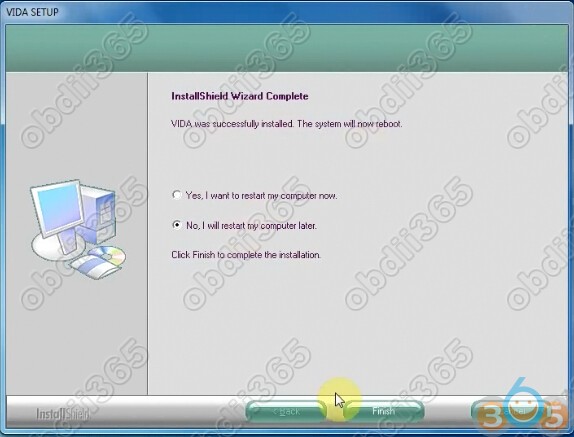
VIDA Setup finished, select restart computer later
install-vida-2014d-2cd-11

Step 2: Install Patch VIDA 2014D


Extra Patch VIDA zip file and paste patch 2014A.exe on desktop
install-vida-2014d-2cd-12

Install patch, select destination folder to C://,press Install

Connect Volvo DiCE interface with computer via USB port System will automatically install the driver DiCE-206751 @ 000000000000 device driver successfully installed

Allow windows firewall access

Delete Patch, Adobe Reader XI and 2014A.exe on desktop
install-vida-2014d-2cd-13

Step 3: Run Self Test

Run Vida All-in-one as Administrator
install-vida-2014d-2cd-14


Enter Username:1 and log in
Open Computer->Manager->Device Manager->DiCE Hardware to check scanner is well connected 
install-vida-2014d-2cd-15


Define vehicle profile

Select Communication Tool: DiCE-206751

Press DICE Configuration->Test Communication Tool
install-vida-2014d-2cd-16
Click Run to run self test
install-vida-2014d-2cd-17


Self test okay

Connect DiCE unit with vehicle

Read vehicle information and run diagnostic function 
install-vida-2014d-2cd-18
install-vida-2014d-2cd-19

2018/01/10

Volvo VIDA DiCE 2014D failed to login Solution

Free download VIDA 2014D patch when you fail to log in.

Volvo VIDA Dice 2014D cannot log in:
When the user name is entered, the interface will pop up “please wait” and jump into a blank page for seconds, then back to the login interface.
volvo-vida-2014d-fail-login-1

volvo-vida-2014d-fail-login-2

volvo-vida-2014d-fail-login-3

volvo-vida-2014d-fail-login-4
 If your computer date/time is newer than 31/12/2018 and you fails to login VIDA All-in-one, please download patch here:
Run Patch.cmd and Vida 2014D works like a charm
volvo-vida-failed-login-solution
Note: this patch only works for VIDA 2014D; cannot be used for VIDA 2014A

Tech support from obdii365.com

http://blog.obdii365.com/2018/01/10/solved-volvo-vida-2014d-cannot-log-in/

2018/01/03

How to install Volvo VOCOM 88890300 PTT 2.03 U Disk

Here’s the step-by-step instruction on installing Volvo PTT 2.03.20 16GB USB Flash Drive for 88890300 Vocom interface. Activation is required, we provide 1 time free activation, after that each activation costs 25USD.
vovom-ptt--u-disk
How to install Volvo VOCOM PTT 2.03 U Disk?
Operating system: Windows 7 32-bit
1.Prepare one piece of empty hard disk over 120GB
2.Install well WIndows 7 O/S in the empty hard disk
3.Follow this demo to restore the software Volvo PTT 2.03 in the U disk
4. Finish restoiring the sofwtare. If the cumputer driver is not successfully installed,m
please use the derive the life6_setup exe or other similar software to fix..
install-volvo-vocom-ptt-2.03-1
install-volvo-vocom-ptt-2.03-2
Disable both local network and wireless network connection before installation.
install-volvo-vocom-ptt-2.03-3
Insert flash drive
install-volvo-vocom-ptt-2.03-4
install-volvo-vocom-ptt-2.03-5

Install Adobe Reader 9
Click Install setup
Setup completed
install-volvo-vocom-ptt-2.03-6

Click on Finish
Install 7-Zip 32bit 9.20 setup
install-volvo-vocom-ptt-2.03-7

Click Install
Click Finish
Open Acronis True Image 2015 18.0 folder
install-volvo-vocom-ptt-2.03-8

Open AcronisTrueImage2015 en-US setup
install-volvo-vocom-ptt-2.03-9

Click install to install True Image for PC
install-volvo-vocom-ptt-2.03-10
Click on Start application
install-volvo-vocom-ptt-2.03-11

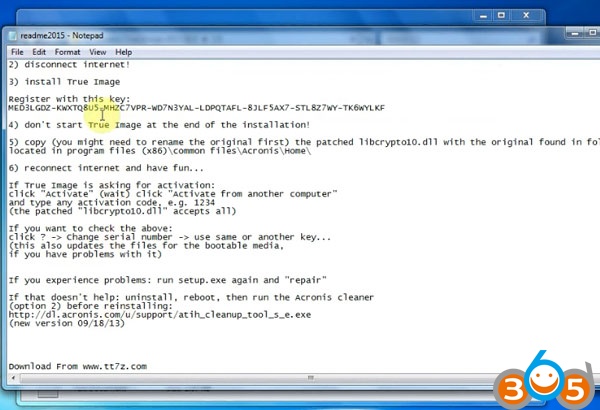
Program will require to enter your serial number to activate software
How to check S/N?
Open Acronis True Image 2015 18.0 folder->CK folder
Open readme2015 notepad to check activation tips
install-volvo-vocom-ptt-2.03-12
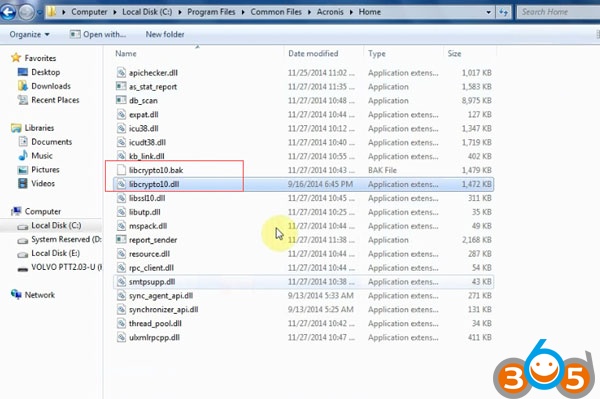
Open C://Program Files/Common Files/Acronis/Home, rename “libcrypto10.dll” to “libcrypto10.bak
install-volvo-vocom-ptt-2.03-13

install-volvo-vocom-ptt-2.03-14

Copy “libcrypto10.dll” under VOLVO PTT 2.03 U Disk/Acronis True Image 2015 18.0/CK folder to C://Program Files/Common Files/Acronis/Home
install-volvo-vocom-ptt-2.03-15
install-volvo-vocom-ptt-2.03-16
Copy the register key  on notepad and paste here
install-volvo-vocom-ptt-2.03-17
Click ACTIVATE
install-volvo-vocom-ptt-2.03-18
Open location VOLVO PTT 2.03 U Disk->VOLVO PTT2.03->VOLVO PTT 2.03.20 &Flash-full_b1_s1_v1
install-volvo-vocom-ptt-2.03-20

Select Recover Disks button
install-volvo-vocom-ptt-2.03-21
Select the device need to be recovered
Click Recover Now
install-volvo-vocom-ptt-2.03-22
Restart the computer
install-volvo-vocom-ptt-2.03-23
Wait data recovery completed
install-volvo-vocom-ptt-2.03-24
Now you can run Volvo Tech Tool 2.03.20 diagnostic and programming software.


2017/12/02

Volvo Vida Dice 2014D Error “VIDA NOT OK” Customer Solution

My VOLVO VIDA Dice 2014D had “VIDA NOT OK” during installation. I get the ‘security – ok’, ‘Framework35 – ok, ‘VIDA NOT OK’ message. Then after reboot and run the patch it can’t find ‘VIDA Monitor’.

my laptop specs are:

Dell Latitude D630

4 GB Ram

80GB HDD

OS= Windows XP Pro SP3

core 2 duo 2.0GHz.


With lots of help from forum friends, I’ve actually managed to get my VIDA working!


To do this I went into Windows START button/ programs/ Microsoft SQL Server 2008 R2/ Configuration Tools/ SQL Configuration Manager…(left click on it to open)

In the left hand pane left click on ‘SQL Server Services’.

In the right hand pane you need to make sure that ‘SQL server (SQLEXPRESS)’ and ‘SQL Server (VIDA)’ are both set to ‘automatic’.

Then reboot.

Then go back into ‘Add/remove programmes’ and uninstall VIDA only! Do not uninstall anything else. Its about 1.5GB from memory.

Then you must go into ‘My computer’, Local disc (C:\), and delete the folder named VIDA.

Then open ‘program files’ folder and delete the two folders ‘Volvo’ and ‘Volvo cars’.

Reboot.

Then reinstall Volvo VIDA 2014D using the normal ‘all in one’ option. (Be patient), mine took 45 minutes.

Then you should get the VCC Intranet / VCC Internet /Internet options come up. Select Internet and then let it carry on installing.

Reboot and then install the ‘crack’ without changes the field.

Its a dos programme so you will just see a couple of DOS windows open and close.

I did all of the above in that order and it worked for me after over 8 months of pissing about trying to get this sodding software working.

Now I only hope my Volvo DICE unit still works!

All of the above was done after a unsuccessful installation with the ‘VIDA NOT OK’ message after installing.
volvo-dice

2017/12/01

How to install Volvo Vida on Windows XP VMWare Player

I can confirm that Volvo VIDA 2011A will work in Windows 7 (Ultimate, BTW). But with the following conditions. You need to run IE8 not 9 (I have found that VIDA just won't go with 9), minimum RAM is 2G. Should be good to go with that; but since MSSQL, which VIDA requires is such a hog, other conflicting apps could create issues. Volvo obviously recommends that a VIDA box be used exclusively for that purpose with no other apps installed. Realistically, I have also installed MS Office, Adobe Acrobat and Lightroom, and some Nikon software without creating a problem.

Actually, running a VM is maybe a good solution to avoid collision with other parts of the installed software. As you know, a VM is like a dedicated computer with nothing else installed on it. Another benefit is to use it on your newish computer which is faster (of course VM will steal some performance but I've noticed no problems with VIDA level software which is not a very demanding software)
VM also adds a little more clunkiness on UI having to swing between 2 windowing/operating systems and deal with assigning the mouse+USB inputs between the 2 operating systems. But its not too bad really. Once inside VIDA, one is staying there to work for awhile.
My setup is a 2008ish Macbook Pro (not fast by today's standards) with VirtualBox Windows XP VM. I run both VIDA DICE and Toyota Techstream (for our Prius) on the VM with no problems. I actually just leave the VM always up and running so its like having my car diagnostic computer available all the time.
This said, VM does require a little more computer skills for setup. Probably about the same skill level to solve interference with other software installs. For someone with less computer skills, it seems a dedicate computer running Win XP is probably the easiest fool proof path.
Here is what I would do: Get VMWare Player (Free http://www.vmware.com/products/player/), which is a virtual machine software. VMWare Player does not allow you to create new virtual machines, just open previously made ones.
Next, find a Windows XP Professional VMWare image. This is more than just an install disk - this is a full already installed image of XP Professional SP3.
Open the XP image with VMWare Player, boot XP in your virtual machine, and install VIDA on that. You need to connect the USB DICE through to the Virtual Machine, see the help/tutorial to learn a little about VMWare player.
The huge advantage of this method is everything dealing with VIDA is completely isolated into that virtual machine. Thus you don't need to worry about what else you have installed that will mess up vida, viruses hidden in any of the SW you've acquired, etc. The only thing you are installing on your main PC is VMWare Player, which is very trustworthy.
You can even enter full-screen mode, which will make it seem like you are running the real XP.
The whole process should be very painless & simple, the only thing you are missing right now is a VMWare Image of XP Professional. If you want you can try installing XP from the installation disk you already have using VMWare Player, which requires a bit more work, see e.g.:http://johnbokma.com/mexit/2005/10/26/vmware-player-windows-xp.html .
-Colin
PS: VMWare Workstation (basically full version of player) is excellent SW, I've used it for many years now in a variety of environments. So I would have no hesitation using the player edition, but I honestly haven't tested the above with VMWare Player only. The Microsoft VM that comes with Windows 7 is a joke by comparison.