Showing posts with label Volvo VOCOM. Show all posts

2020/03/04

Free Download and Install Volvo Tech Tool PTT 1.12

Part of Volvo VOCOM clone comes with default free Premium Tool 1.12 software and optional higher V2.xx version. Here you can download PTT 1.12 software for free:

Free Download Volvo PTT 1.12
Software version: PTT 1.12
Operating system: Windows XP, Windows 7
Multi-language: Czech, Danish, Dutch, English, Spanish, French, Italian, Burmese, Romanian, Turkish, Russian, Finish, Swedish,Thai, Chinese, Korean, Japanese, Latvian, Lithuanian etc
volvo-ptt-1.12-software

How to Install and Activate Volvo Tech Tool 1.12?

Step 1: Install PTT setup
Open software CD
install-volvo-ptt-112-software-1
Install PTT 1.12 run the setup
install-volvo-ptt-112-software-2

Enter installation ID:123456
install-volvo-ptt-112-software-3

Install setup completed
Reboot PC

Step 2: Activate PTT
install-volvo-ptt-112-software-4
install-volvo-ptt-112-software-5
Open VTT 1.12_KG folder and run Premium Tool keygen
install-volvo-ptt-112-software-6
Test connection
Delete previous records
install-volvo-ptt-112-software-7

Press Activate
Write down the login ID: M311331
Open Tech Tool software on desktop
install-volvo-ptt-112-software-8

PTT require to enter User ID (login ID): m311331 (don’t need password), Press OK to continue
install-volvo-ptt-112-software-9

Check Volvo PTT 1.12 version software features
install-volvo-ptt-112-software-10

Go to Menu->Settings
install-volvo-ptt-112-software-11

Select language you desired

Step 3: Offline Update
Stop networkupdateagent service and program
install-volvo-ptt-112-software-12
install-volvo-ptt-112-software-13
Go to Computer Management-> Services and Applications->Service->disable networkupdateagent service and program
install-volvo-ptt-112-software-14
In Win7 system, must end the networkupdateagent in Task Manager
install-volvo-ptt-112-software-15

install-volvo-ptt-112-software-16

copy all offline files to C:/Program Files/Network Update Agent
install-volvo-ptt-112-software-17

Run the networkupdateagent and services
install-volvo-ptt-112-software-18
Wait for 1-2 hours until the offline network update completed.
Done.


Read also:

2019/06/19

How to install Vocom II 88894000 Firmware?

What is Vocom 2 88894000?
It’s the 88894000 Vocom communications unit ii
888894000 provides communication/translation between the computer and the vehicle.
volvo-vocom-ii-1

volvo-vocom-ii-2


It features:
  1. Newest and most fullest diagnostic software
  2. Electrical Wiring Diagrams: FM, FH, FL, FE
  3. Development access: configure more than 11000 parameters of ANY level without any restrictions (APCI)
e.g.
Minimum/maximum values like speed limit
Chassis ID Change
Injector programming
EURO 6 configurations available
Clutch calibration
And many more
Spare parts catalogs: for construction, trucks, marine. Matris, Impact, Prosis.
Multi-languages: English, Czech, Danish, German, Spanish, French, Italian, Magyar, Dutch, Polish, Portuguese, Romanian, Swedish, Turkish, Russian, Lithuanian and other.

  • Improved LED indicators
  • Improved quality of cables
  • Military standard on connectors
  • Better liquid and dust ingress protectors
  • Metal casing and rubber bumpers for better protection
  • Operates from -40 Celsius to +85 Celsius
  • Shock resistance: 2 meters


Vocom 2 driver download:

Browse to www.premiumtechtool.com website under the “Support” menu.
Scroll down and locate the driver under “Adapters and Firmware Updates” section.
Save the VOCOM 2 driver file to your computer.

Vocom 2 firmware installation instruction:

Locate the saved file and extract the file contents.
install-volvo-vocom-ii-firmware-1
Open the folder and Install the file.
install-volvo-vocom-ii-firmware-2
On your PC, go to Start, All Programs.
Click on VOCOM II folder and then click to launch the VOCOM II Configuration Application.
install-volvo-vocom-ii-firmware-3
Plug the VOCOM II into the PC USB port. The VOCOM2 will display under “All devices”
Please note: Serial Number (SN) differs. Do not connect to the vehicle at this time.
When you receive the “Please update device firmware” pop up message.
Click to continue. Otherwise, click on the “Device software” tab.
install-volvo-vocom-ii-firmware-4
Click on “Update device”.
install-volvo-vocom-ii-firmware-5
The software will begin to update.
Note: Updating device can take a few minutes.
install-volvo-vocom-ii-firmware-6
When the Update is complete, the VOCOM Configurator will refresh the settings.
install-volvo-vocom-ii-firmware-7
Open Tech Tool and go to “Settings” to configure the adapter settings.
Here you can select the VOCOM II and then “Activate” to enable.
Next, click on OK to close window.
Please note: VOCOM I and VOCOM II use different drivers and must be activated separately.
install-volvo-vocom-ii-firmware-8
You’re now ready to connect to a vehicle!


88894000 Vocom 2 vehicle coverage:

  • Volvo Trucks –Older electrical system, Vehicle electrical system ’98; VERSION2, VERSION3; VERSION4 – FH4/FM4;
  • Volvo Buses –Conventional, Multiplexed, Multiplexed v2, Multiplexed v3;
  • Volvo Construction Equipment;
  • Volvo Penta, Marine engines –VERSION2, VERSION3;
  • Volvo OEM Component Customer –VERSION2, VERSION3;
  • Mack Trucks –V-MAC I/II/III, ITC, IV, IV+;
  • Renault Trucks –VERSION2, VERSION3, VERSION4; (EURO 6, DXI, DTI)
  • UD Trucks– VERSION2, VERSION3.

in detail…

Volvo trucks :AC  Compo4  F10  F12  F16  FE FH FH12 FH16 FH565 FL FL10 FL12  FL6 FL7 FM FM10 FM12 FM9 FM7 Nh12 NH525 NH565 NL10 Nl12 VAh VHD Vm VN VT WC WG WI WX
Volvo busses:
B10B  B10L B10M B10R B11R B12 B12B B12M B12R B13R B58 B5LH B5RH B6 B6R  B7FB B7L B7R B9L B9R B9S B9TL BXRC COMP12
PREVH PREVX OLYMPIAN SUPEROLY
Wheel Loader:
L110E  L110F L110G L120E L120F L120G L150E L150F L150G L180E L180F L180G L220E L220F L220G  L250G L330E L350F L45F-TP L45F-TPS L50F-TP L50F-TPS L50G-TP L50G-TPS L60E L60F L60G L70E L70F L70G L90E L90F L90G
Aryiculated Hauler :
A25D A25E A25F A30D A30E A30F A35D A35E A35F A40D A40E  A40F T450D
Excavator:
EC135B EC140B EC140C EC140D EC160B EC160C EC160D EC180B EC180C EC180D EC200B EC210B EC210C EC235D EC240B EC240C  EC250D EC290B EC290C EC300D EC330B EC330C EC340D EC360B  EC360C EC380D EC460B EC460C EC480D EC700B EC700C  ECR145C ECR235C ECR235D ECR305C EW140B EW140C EW140D EW145B EW160B EW160C EW160D EW180B EW180C EW180D  EW200B EW210C EW210D EW230C FB2800C FBR2800C FC2121C FC2421C FC2924C FC3329C PL3005D PL4608 PL4808D PL7015
Grader:
G710B G720B G726B G730B G740B G746B G780B G930 G930B G940 G940B G946 G946B G960 G960B G970 G976 G990
Skidsteer Loader :
MC110B MC60B MC70B MC80B MC90B
Compact Excavator:
EC55C EC80D ECR88 EW60C
Paver :
ABG7820B ABG8820B P7820C L882C
 
Others:

CARETRAC

2019/06/09

Volvo Tech Tool 2.7.25 Windows 7: How to install & activate

Volvo Premium Tech Tool PTT 2.7.25 is confirmed work no issues with VOCOM interface on Windows 7 32 bit.

Time: 20-30 min to install and activate ptt
Operating system: Windows 7 32 bit
Windows 2003/XP/Vista/7/8/10…all confirmed!
volvo-ptt-v2725
Installation instruction and activation help:

Step-by-step instruction:

Step 1: Tech Tool 2.7.25 installation

Set up Microsoft.NET Framework 4.6.1
Start to install Tech Tool 2.7.25.1
– acquiring package: 2 min
– apply package 10/46: 2 min
Finished installation

Go to Tech Tool Installation – developer packages
Run 1-developement: run automatically
Run 2 – Devpatches: run automatically

Auto play DVD-1, copy and paste the files to the new folder “APCI”.
Auto play DVD-2, copy and paste the files to the new folder “APCI”.

Extract the decompressed folders.
Folder option: Don’t show the hidden files, folders and drivers.

Go to the disk C -> ProgramData -> Tech Tool-> Waf
Delete “DtR” and “OtD”
Copy the folder “DtR” and “OtD” to the disk C -> ProgramData -> Tech Tool-> Waf
Go to the disk C -> Program Files-> Client Update -> Console, change the file name extension of “CLUPConsole.exe” as “CLUPConsole.ex”
Go to the disk C -> Program Files-> Tech Tool -> ApciPlus, change the file name extension of “apcidb.dll” as “apcidb.dl”
Copy “apcidb.dll” to the disk C -> Program Files-> Tech Tool -> ApciPlus.

PC restarts

Step 2: Tech Tool 2.7.25 activation
FYI, it’s FREE to help activate Tech Tooll 2.7 off obdii365.com

Open the new folder “APCI”, copy “TechToolLicenseEditor” from “2.7 Full” folder
Then copy and paste “Devtool 2.7.xx”.
Click on “Get _FW_ID.exe” to get the ID for activation

Will get two folders (Act and Dev) after activation
Open “Act” to copy the “Regkey.dat” to Disk C -> TechToolLicenseEditor
Open the folder “Dev” to copy “regkey.dat” to Disk C -> TechToolLicenseEditor – Devtool 2.7.xx.
Run “DevTool.exe”
Send “DevTool.exe” to the desktop.
Open Developer Tool Plus 2.6/2.7
Choose a database language
Open PTT 2.7.25.1 full, then “cmd run as admin techtoollicense editor command.tx”, follow the instruction
User type “Developer
Click on “Created DB with new key”.

Get message :
Database clean success
Wait…
Syncid populate error!

If you will get error sync pop ID just start and close ptt
Open Tech Tool and it requires User ID, exit
Again, click on ” “Created DB with new key”
Click on “Patch Login”.
DB created.
Login patched successfully

Copy the user ID “XX78911” in the TechTool 2.6XX && 2.7 license editor
And rename “Tech Tool” (on the desktop) as “XX78911”
Then open it and log in User ID “XX78911”
Choose “Work offline”

Tech Tool is ready for use!

Note that the latest Premium Tech Tool is version 2.7.55.4 
Tech Tool 2.7.55.4 developer (real dev database) can work perfect with all Volvo brends (SUPPORT USA) + last acpiplus updated 05/2019.
Online installation directly via volvo server(Not need any files or links to download) – support for USA trucks also

This module is “Getting original File” from the Volvo Server.
This Getting File for Chassis Id, so you need firstly connect to a truck with Tech tool.
After getting file from the Volvo server.
You don’t need an online account from Volvo.
volvo-ptt-v2755

2018/05/16

Will Volvo VOCOM II work with Tech Tool 2.05.xx?

Confirmed! Vocom I can (Vocom 88890300) work with Tech Tool 2.05.xx, while Vocom II (genuine) failed.


Tool: Vocom 88890300 interface and Vocom II
volvo-vocom-i
volvo-vocom-ii
Program: Premium Tech Tool (fresh 2.0.587 install, zero issues)
I installed PTT 2.05.87 . Then updated the APCI and APCI+ from what I could find on this forum in various threads.
ptt-2-5-87
Truck: 2012 USA VN

Error message:
Error
It was not possible to select any operations for the selected product
Detailed information
Code: 0
Description: unit retrieved from Baldo Local is unknown: US…

While I wait for my original Vocom 2 to arrive from Volvo, I borrowed a Vocom 88890300 from a friend. It connects to the truck (2012 USA VN) but when I try to calibrate or program it gives me the error in the first picture. I also took a screenshot of the connection status (see second picture). Is this error caused by PTT (fresh 2.0.587 install, zero issues), the Vocom interface or by the APCI’s I updated from a file someone sent me. Are the European/Asian APCI’s and APCI+’s identical with the USA ones? Any opinions will be greatly appreciated, I have some work to do on the truck and can’t wait until the V2 arrives. Thank you.
volvo-ptt-error-1
Connection:
Communication unit: vocom 88890020/88840133
Mode: usb
Status: active
volvo-ptt-error-2
Tech support from real pros working for obdii365.com:

Vocom II does work with 2.5.xx. you just need to install the drivers. If you want to have Volvo Tech Tool 2.5.xx on Vocom, try this Vocom 88890300 Interface or make sure yours same as the one displayed below
http://www.obdii365.com/wholesale/volvo-88890300-vocom-interface-with-ptt-software-preinstalled.htmlReal professionals have helped test Tech Tool version 2.5 on the Vocom I, working perfect!
volvo-tech-tool-2-5-86-pic-1
volvo-tech-tool-2-5-86-pic-2
volvo-tech-tool-2-5-86-pic-3
volvo-tech-tool-2-5-86-pic-4
Tech Tool 2.5.xx tested good:
2.6.xx already has the drivers for Vocom I and II preinstalled
Firstly APCI can update online via PTT so it should be suitable for US trucks when users all are using it.
Secondly the APCI+ files available here works fine on US Volvo trucks as well as other regions. Some users have tested it.


2018/01/03

How to install Volvo VOCOM 88890300 PTT 2.03 U Disk

Here’s the step-by-step instruction on installing Volvo PTT 2.03.20 16GB USB Flash Drive for 88890300 Vocom interface. Activation is required, we provide 1 time free activation, after that each activation costs 25USD.
vovom-ptt--u-disk
How to install Volvo VOCOM PTT 2.03 U Disk?
Operating system: Windows 7 32-bit
1.Prepare one piece of empty hard disk over 120GB
2.Install well WIndows 7 O/S in the empty hard disk
3.Follow this demo to restore the software Volvo PTT 2.03 in the U disk
4. Finish restoiring the sofwtare. If the cumputer driver is not successfully installed,m
please use the derive the life6_setup exe or other similar software to fix..
install-volvo-vocom-ptt-2.03-1
install-volvo-vocom-ptt-2.03-2
Disable both local network and wireless network connection before installation.
install-volvo-vocom-ptt-2.03-3
Insert flash drive
install-volvo-vocom-ptt-2.03-4
install-volvo-vocom-ptt-2.03-5

Install Adobe Reader 9
Click Install setup
Setup completed
install-volvo-vocom-ptt-2.03-6

Click on Finish
Install 7-Zip 32bit 9.20 setup
install-volvo-vocom-ptt-2.03-7

Click Install
Click Finish
Open Acronis True Image 2015 18.0 folder
install-volvo-vocom-ptt-2.03-8

Open AcronisTrueImage2015 en-US setup
install-volvo-vocom-ptt-2.03-9

Click install to install True Image for PC
install-volvo-vocom-ptt-2.03-10
Click on Start application
install-volvo-vocom-ptt-2.03-11

Program will require to enter your serial number to activate software
How to check S/N?
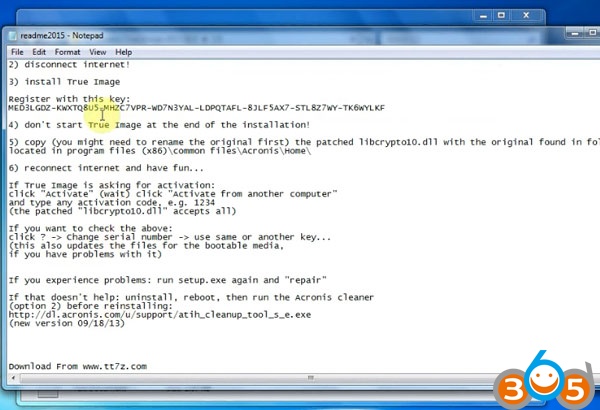
Open Acronis True Image 2015 18.0 folder->CK folder
Open readme2015 notepad to check activation tips
install-volvo-vocom-ptt-2.03-12
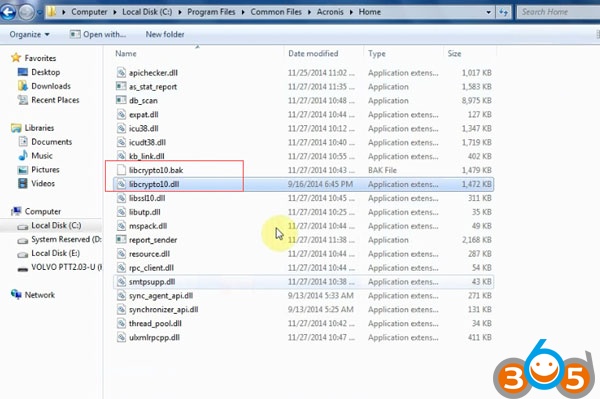
Open C://Program Files/Common Files/Acronis/Home, rename “libcrypto10.dll” to “libcrypto10.bak
install-volvo-vocom-ptt-2.03-13

install-volvo-vocom-ptt-2.03-14

Copy “libcrypto10.dll” under VOLVO PTT 2.03 U Disk/Acronis True Image 2015 18.0/CK folder to C://Program Files/Common Files/Acronis/Home
install-volvo-vocom-ptt-2.03-15
install-volvo-vocom-ptt-2.03-16
Copy the register key  on notepad and paste here
install-volvo-vocom-ptt-2.03-17
Click ACTIVATE
install-volvo-vocom-ptt-2.03-18
Open location VOLVO PTT 2.03 U Disk->VOLVO PTT2.03->VOLVO PTT 2.03.20 &Flash-full_b1_s1_v1
install-volvo-vocom-ptt-2.03-20

Select Recover Disks button
install-volvo-vocom-ptt-2.03-21
Select the device need to be recovered
Click Recover Now
install-volvo-vocom-ptt-2.03-22
Restart the computer
install-volvo-vocom-ptt-2.03-23
Wait data recovery completed
install-volvo-vocom-ptt-2.03-24
Now you can run Volvo Tech Tool 2.03.20 diagnostic and programming software.